Chat and execution history
Last updated:
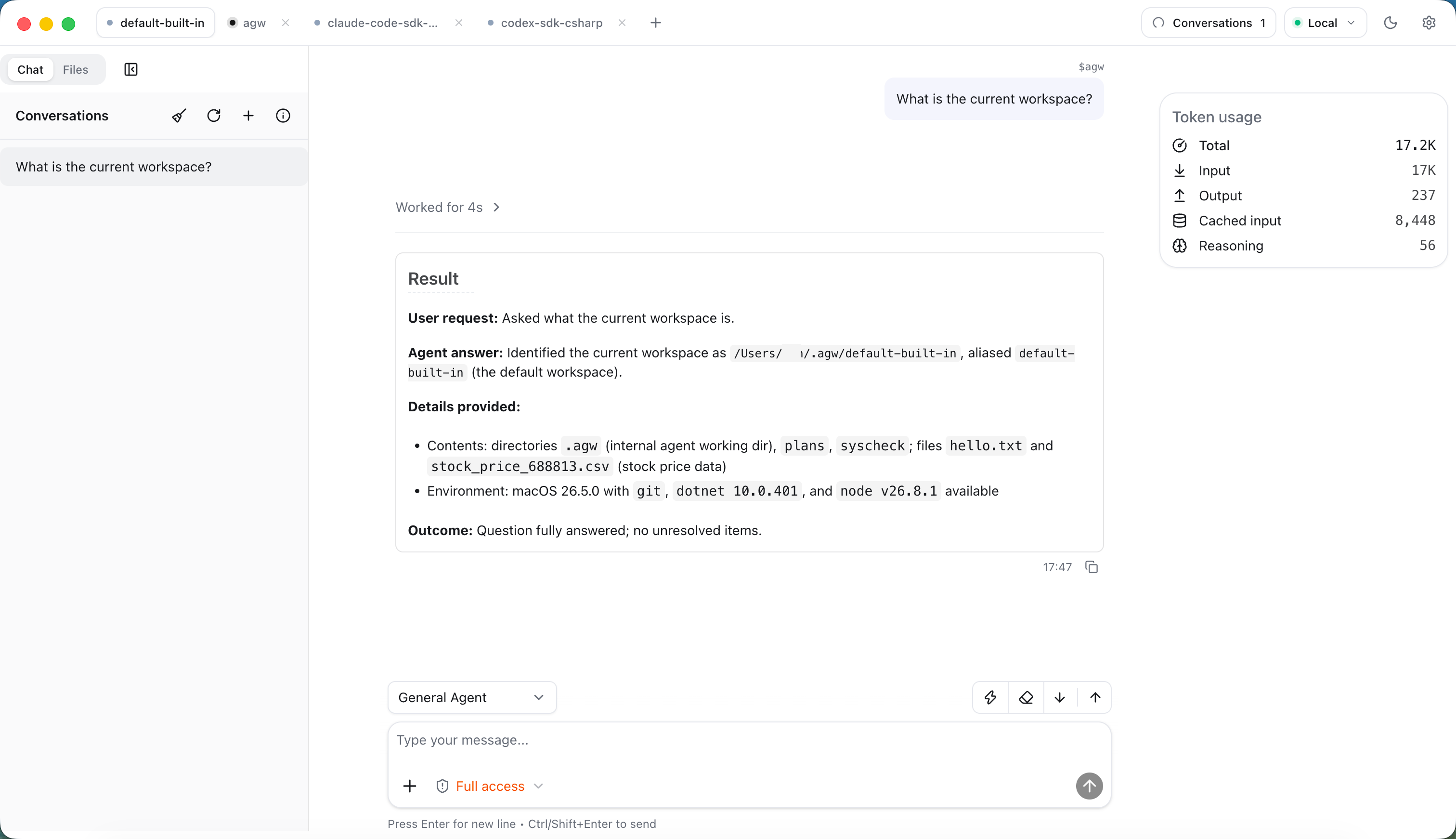
Chat is where you send tasks to an agent or agentflow and inspect the results. Keep related questions in one conversation to retain the discussion and tool activity; start another conversation for a different topic.
Connect to the intended Server and prepare a working agent or agentflow. For an initial setup, follow Your first conversation.
An interaction
- Open Chat and select the Project: in Desktop, use the project tabs at the top of the window; in Web, use the dropdown at the top of the left sidebar. Then choose the execution target in the selector at the top-left of the message box.
- Enter the task, optionally attach images, and press Ctrl/Shift+Enter or click the send button. Enter alone inserts a new line.
- Read streamed output and tool activity. Handle approval or user input requests in the conversation.
- Review the conversation history and final execution state.
Web, Desktop, and Mobile accept text plus JPEG, PNG, GIF, or WebP images. Paste images in Web and Desktop; choose them from the photo library on Mobile. A message may contain up to five images, each at most 5 MB and at most 10 MB combined. Image understanding also depends on the model.
Message box helpers
| Action | Effect |
|---|---|
Type / at the start of a line or after a space | Shows command suggestions: available Skills and Tools for custom agents, or Claude Code’s slash commands |
Type @ | Searches files in the current Project, showing up to 8 matches |
| Arrow keys and Enter | Move through and select suggestions |
| + button | Turns on Plan mode (custom agents with the Mode ToolBlock) or inserts Skills and Tools |
| Lightning button | Opens Quick Text Insert to insert text maintained on the Quick prompts page |
| Permission menu | Chooses the tool permission mode; changes apply to the next turn |
| Go to latest message / Go to first message | Jump to the newest message, or load the full history and jump to the first message |
The Quick prompts page has My prompts (entries of the current user) and System prompts (visible to all users, editable only by the administrator). Web opens it from the navigation; Desktop opens it from Settings.
Understand progress
| What you see | What to do |
|---|---|
| Replies or tool activity keep arriving | Wait for completion and watch for errors |
| A tool approval request | Inspect the operation, arguments, and paths before deciding |
| A request for information | Answer in the current conversation so work can continue |
| Execution has finished | Check the reply and, for file work, the actual files or diff |
| An error or lost connection | Check execution state before retrying to avoid duplicate actions |
Icons in the conversation list show each conversation’s status: Running means it is still running, Last turn failed means the previous turn failed, and Last turn interrupted means the previous turn was interrupted.
After a turn ends with a Result, its tool activity and intermediate messages collapse into one “Worked for …” line that you can expand. Model reasoning starts collapsed; click Expand reasoning to read it. Hovering over a user message or Result shows its time and a Copy message button.
A successful execution still needs a result check. For a documentation edit, inspect the changes as well as the agent’s completion message.
Conversation list and settings
The top of the conversation list refreshes the list, deletes all history (Delete All History), and opens Conversation Settings through the Info button. Each conversation can be renamed or deleted.
Conversation Settings shows the conversation ID, message count, and creation and update times, plus two settings:
- Only Stream Turn Result: streams only each turn’s Result and automatically declines questions and tool approvals that need a person; the full history is still saved. It applies only to external agents and to custom agents with Generate Turn Summary enabled, starting with the next turn.
- Environment Variables: environment variables sent with each execution.
These settings are stored per Project in the current client, so another device or browser needs its own settings.
State and connections
Closing a page or losing a connection usually does not cancel execution. In InProcess mode, if the turn is waiting for an approval, user input, or a HumanGate when the connection drops, the Server interrupts it; in Distributed mode, a disconnect never interrupts execution. Use the explicit interrupt action to stop a task.
When the connection drops, the UI shows “Reconnecting to Server…” and retries automatically; click Retry now to retry immediately. After reconnecting, the client restores execution state; check whether the task is running, awaiting input, or finished.
Desktop gives each Server/Project/Conversation combination an independent execution connection. Switching Project tabs detaches the visible subscriber without automatically stopping background work. A status dot on each project tab shows background work, and closing a tab with a running task asks for confirmation first.
History
The server persists conversation and tool activity in batches. The Host template sets a 10-second flush interval; code falls back to five seconds when omitted. Live output that has not yet flushed is not confirmed durable history.
A conversation opens at its most recent messages, and scrolling up loads 50 older messages at a time. Desktop also offers user input navigation, which lists every user input in the conversation, including early inputs that are not loaded yet; selecting one jumps to it and loads older history as needed.
When a turn is interrupted or fails, unfinished messages and messages with fatal errors stay visible in the conversation but are excluded from later turns’ model context and from handoffs to another agent.
If the UI looks wrong, first check the selected Server and conversation, then pending input requests and Server logs. Workspace and permission changes take effect on the next turn.