Web, Desktop, and Mobile
Last updated:
Prerequisite: an initialized Server. Clients do not replace the Server-side model, file, or execution environment.
| Client | Connection | Use case |
|---|---|---|
| Web | Session Cookie from the administrator password or a third-party account; same-origin APIs | Browser management and chat |
| Desktop | API Key, entered manually or issued by third-party sign-in; multiple Server profiles | Local or remote daily workspace |
| Mobile | API Key, entered manually or imported from a configuration generated in Web; multiple Server profiles | Conversations and project access on mobile |
Connect
- For Web, open the Server URL, or port
3001during source development. - Desktop Full can use its bundled Server. In Client, open Settings → Connections & app, click + (Add remote Server), and enter Name, Server URL, and API token. A remote
http://URL requires ticking a consent box acknowledging that the API token and traffic cross the network unencrypted. - Configure Mobile with a Server URL reachable from the device and an API Key. Device localhost usually is not your development computer. Alternatively, create an API Key in Web under Settings → Server access, click Copy config, and paste it into Import Web configuration on Mobile. Deleting a Mobile profile does not revoke its API Key on the Server; revoke it in Web.
- Start a short conversation and verify the target Server, Project, and history.
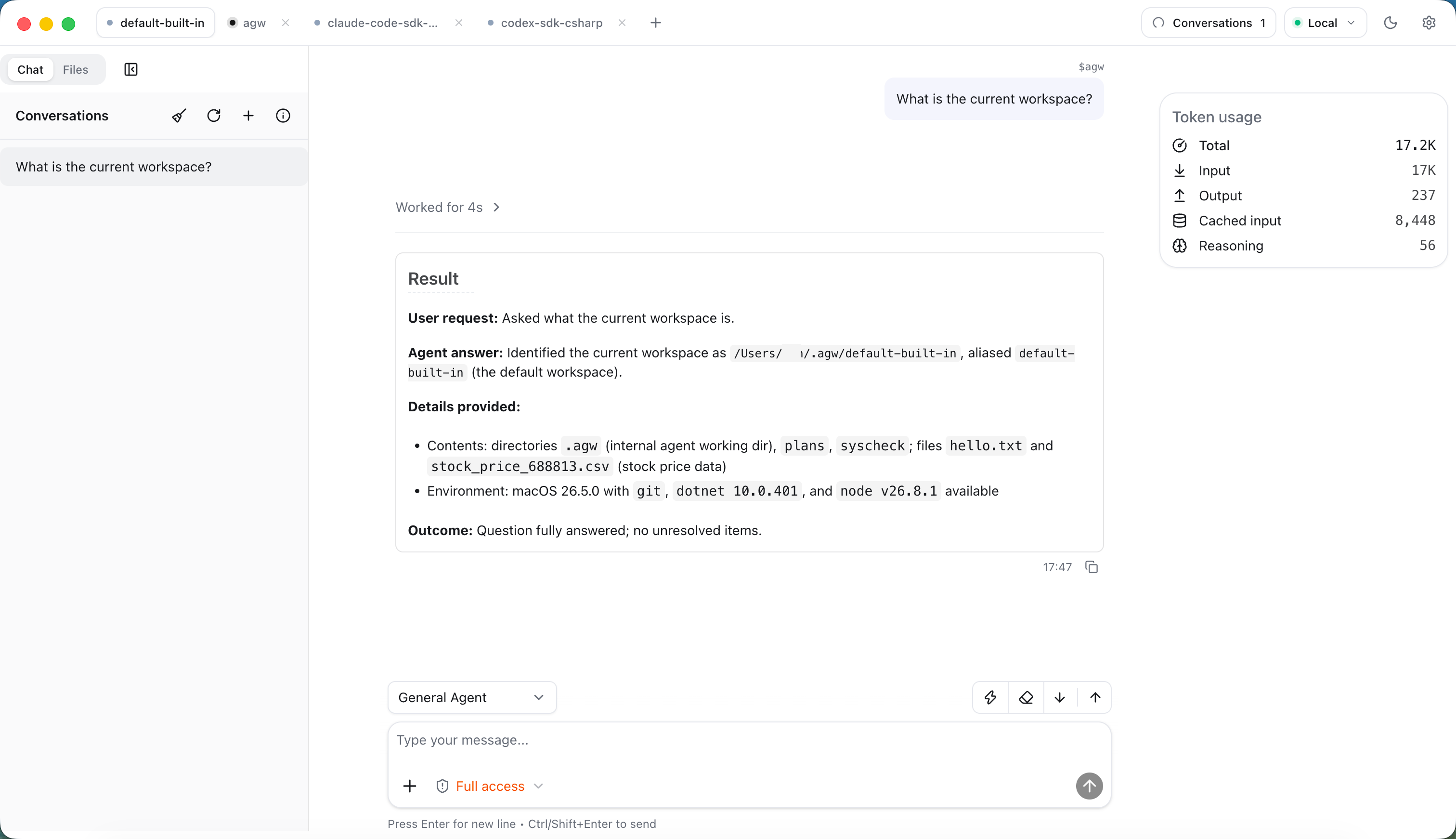
Desktop centers on Chat; Projects and other administration routes live in Settings. Each Server profile uses an isolated cache. Changing its URL or API Key discards the old connection’s cache so data from different Servers does not get mixed.
Third-party account sign-in
When Server has identity providers enabled, the Web sign-in page shows account buttons and returns you to the page you requested. Desktop shows “Sign in with …” in the Server profile; the system browser completes authentication and Desktop receives its API Key without any manual paste. The same place offers “Sign out” to revoke that API Key. When the built-in local Server profile is in third-party sign-in mode without a usable API Key, such as after signing out or expiry, it also shows “Use local administrator”.
Mobile has no third-party sign-in and uses an API Key entered manually or imported. Each third-party account is a separate user whose data stays apart from the administrator account. See Configuration and authentication for setup and Third-party account sign-in for behavior.
Runtime differences
Desktop renderer uses its own port 3000 and does not require the Web development server. Full’s Server daemon continues after the desktop window closes; closing minimizes to the tray by default.
Mobile uses Expo with native projects generated through CNG. These docs provide the source-development path, without assuming an app-store package exists. Use HTTPS for remote access and ensure the proxy supports execution WebSockets.