Scheduled jobs
Last updated:
A Job runs an agent or agentflow at a scheduled time, such as for a routine check or recurring summary. Save its instructions, Project, and schedule; Server starts the task when due and records each outcome.
First verify the same task manually in Chat, including its model, tools, and directories. Server must stay running. In split deployments, Control Plane schedules the work and Data Plane executes it.
Configure a job
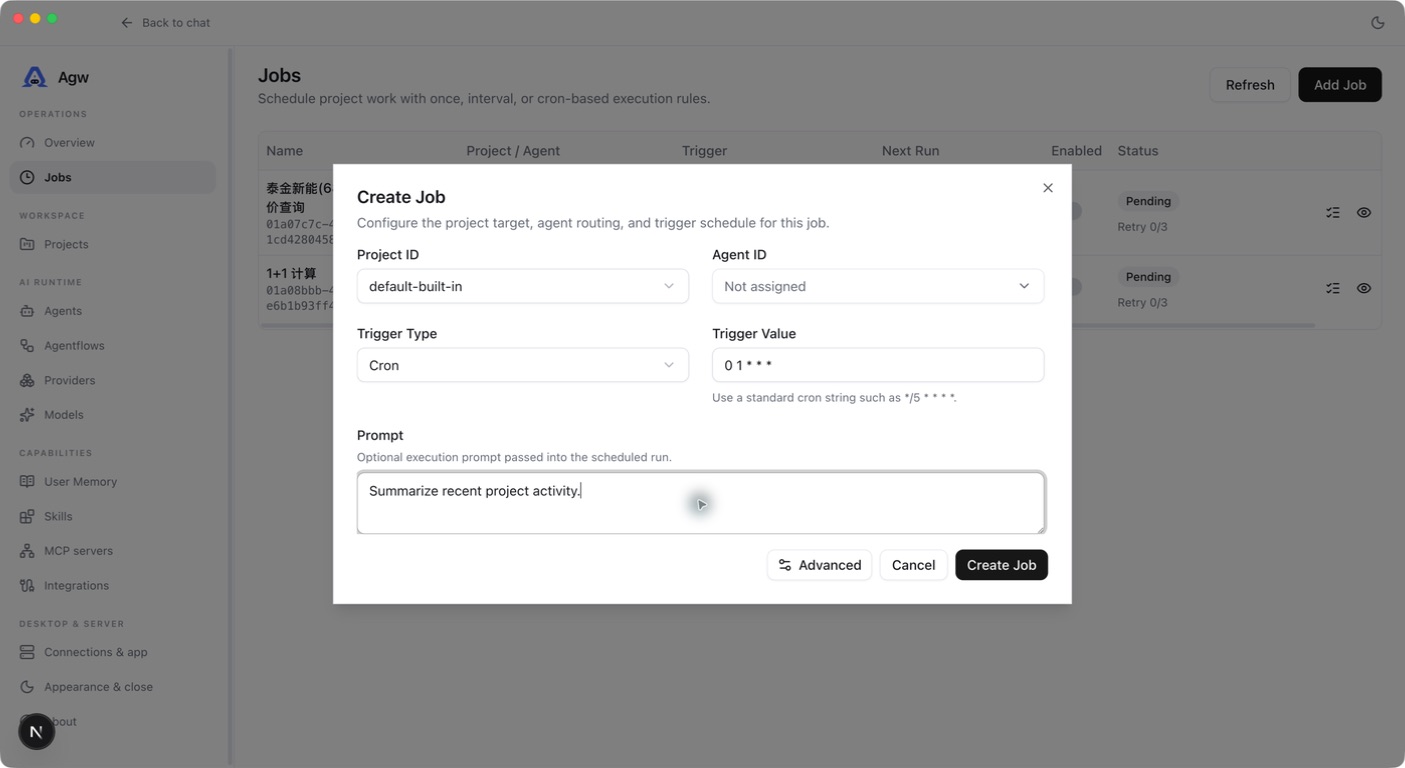
- Create a Job, choose its Project in Project ID, and choose the Agent or Agentflow to run in Agent ID. A job without a target still saves, but fails at run time and enters retries.
- Write its prompt, choose a Trigger Type, and enter the run time or trigger value.
- To change the name, failure retries, or enabled state, click Advanced at the bottom of the dialog and use Job Name, Max Retry Count, and Enabled. Max Retry Count defaults to 3 and new jobs are enabled; a blank Job Name is generated automatically.
- Test a future one-time job first. After Job logs and project execution records look right, create a separate recurring job. A successful one-time job pauses and disables itself; switching it to a recurring trigger or enabling it again does not make it run.
| Trigger | Example | Time semantics |
|---|---|---|
| Once | A future RFC 3339 timestamp, such as a UTC value ending in Z | Must be in the future |
| Interval | 00:15:00 | A positive duration in hours:minutes:seconds. The first run is 15 minutes after creation; each later run is 15 minutes after the previous successful run ends |
| Cron | 0 1 * * * | Standard five fields, evaluated in UTC; daily at 01:00 UTC |
Clients display local time, but Cron uses UTC. A past Once timestamp does not mean “run immediately.” If an Interval is not a positive hours:minutes:seconds duration, or a Cron value does not have five fields, an error appears below the field and the save button stays disabled. A five-field Cron with invalid field values is rejected by the Server on save with “Invalid cron trigger value”. After saving, check the next execution time in Next Run in the job list.
Write instructions that stand on their own
A scheduled task may run without anyone available to clarify it. Specify the source, time range, and output. For example: “Read this week’s project progress notes. List completed work, unresolved issues, and next steps. Say when records are missing instead of guessing.” Configure the target agent’s reading capability before use.
0 1 * * * runs daily at 01:00 UTC, which is 09:00 in Singapore or China Standard Time. After saving, check the next execution time in Next Run in the job list or details. A maximum retry count of 2 allows up to 3 attempts: the initial attempt and two retries.
Execution, retries, and pausing
Scheduled tasks in one Project run serially; different Projects can run concurrently. Each run starts a new conversation in the Project, runs with Full access, and automatically declines questions and approvals that need a person. Successful one-time jobs pause and disable themselves. Recurring jobs schedule their next run. A failed attempt is retried after 30 seconds, and MaxRetryCount excludes the first attempt. Exhausted retries pause and disable the job, and a recurring job schedules no further runs; fix the problem and create a new job to continue.
Each attempt records its time, result, and errors. Disabling a Job prevents later scheduling but does not interrupt an active run. Edits or deletion may be rejected until it finishes. The scheduler reads upcoming tasks in advance, so check the task state and execution records after rescheduling.
For missing runs, check initialization, enablement, next-run time, and target validity. Make external writes repeatable; a project lock is not an exactly-once guarantee.
Job Logs: inspect execution results
Job Logs records each execution attempt for a Job. Use it to check success, retries, and failure reasons. It contains execution outcomes; open Chat for full model replies and tool activity.
Open execution logs
- Find the task in Jobs and open its row’s logs action to enter Job Logs.
- Locate the relevant record by execution time and inspect its status, attempt number, and error.
- Select Go to Chat to open the conversation for that run and inspect its conversation and execution content. If the run has no conversation record yet, it opens the Job’s Project instead.
The task details view also exposes attempts and errors under Execution Logs. Back to Jobs returns to the task list.
Read the fields
| Field | Meaning |
|---|---|
| Status | Succeeded means the attempt completed successfully; Failed means it failed |
| Attempt | Attempt number within the current run: #1 is the initial attempt and #2 is its first retry, not the Job’s lifetime run count |
| Job ID | Identifier of the task owning these records; multiple records for the same Job share this ID |
| Time | Attempt start time and, when present, end time, displayed in the client’s local time |
| Error | Failure reason, or - when no error is provided |
| Actions | Open conversation content with Go to Chat |
For example, Failed / #1 followed by Succeeded / #2 for the same run means the first attempt failed and its retry succeeded. A recurring Job resets its retry count after success, so later records can show #1 again. Use timestamps to distinguish runs.
Troubleshoot with logs
- No records: check whether the task is enabled, its scheduled time has arrived, and it is still running. Records are written when an attempt ends and its outcome is recorded; an empty list does not necessarily mean scheduling never started.
- Failed execution: read Error, then use Go to Chat to inspect model replies and tool activity. Consult Server logs for model connection failures, tool errors, or unavailable workspaces.
- Success but an unexpected result: Succeeded means execution completed successfully. Still verify the output, generated files, or external actions against the task requirements.
- Failures remain after recovery: a successful retry does not remove earlier failure records. Check later attempts by time and inspect the Job’s current state.
Scheduled and background execution
Jobs run an Agent or Agentflow at a specified time, interval, or Cron schedule, for tasks such as periodic summaries and routine checks. Background Agents can delegate subtasks to other agents and retrieve their results later.
- Verify that the Project, target, and required tools work.
- Create a Job with instructions and a schedule for recurring work; configure Background Agents for delegated subtasks.
- Inspect status, results, and errors in task records and adjust the schedule as needed.
Closing Chat does not automatically cancel execution, but the Server and execution nodes must keep running. Background Agents cannot wait for new human approval. Unattended Jobs cannot automatically complete requests that need a real human answer or HumanGate decision. Ongoing execution does not guarantee seamless recovery after every restart; recovery depends on the deployment and execution mode.
Configure tools and Skills · Learn about memory · Check execution status